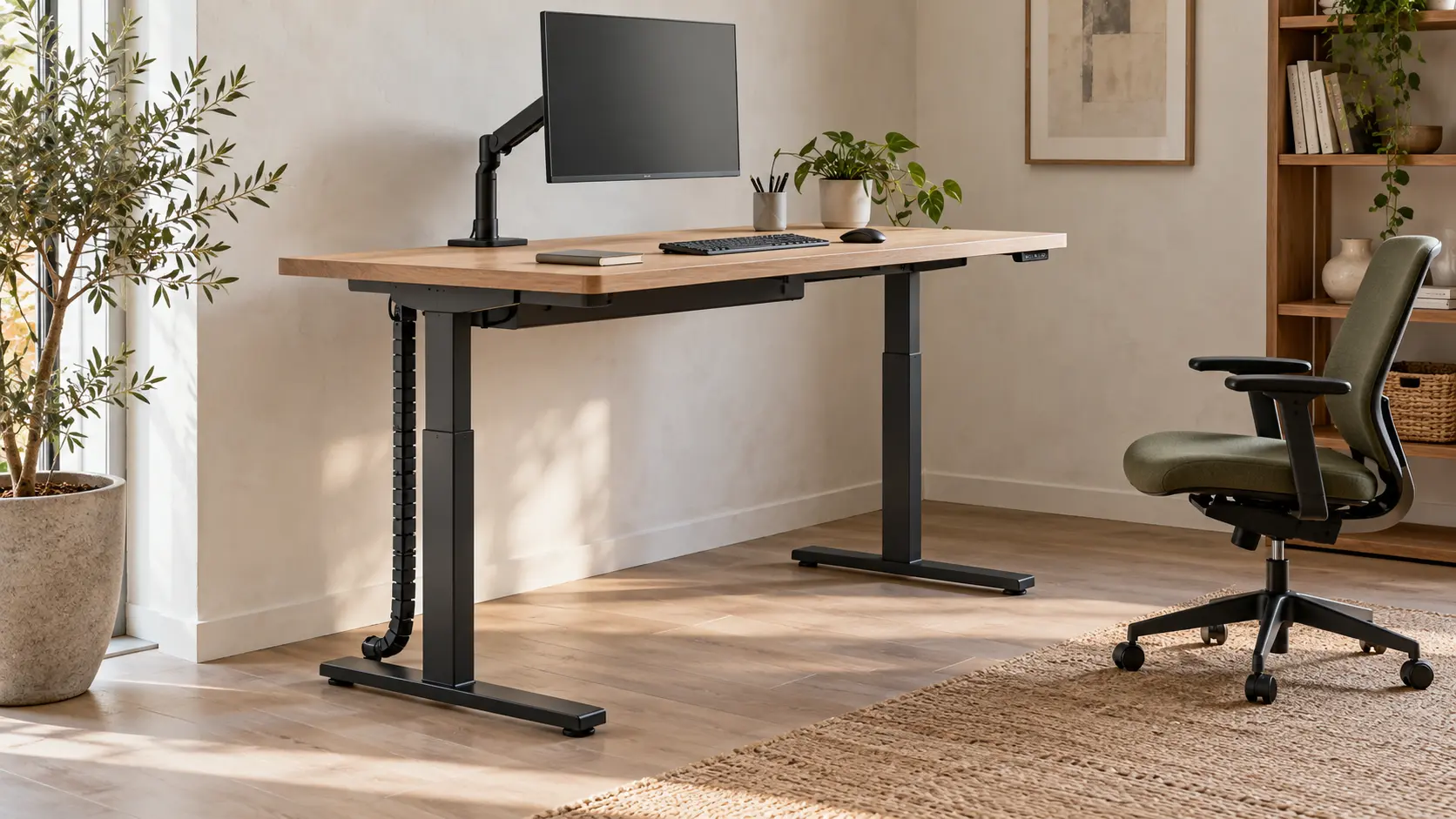
A standing desk can rise and lower smoothly while the workstation around it still needs attention. The monitor cable may tighten as the top rises. A drawer unit may sit in the downward path. A height preset may suit the person who installed the desk but leave its everyday user reaching for the keyboard.
A useful standing desk handover checks the complete workstation in both working positions, with the actual equipment connected and the person who will use it present. The aim is to leave with a setup that works, a record of its settings and a clear route for resolving anything unfinished.
Use the checklist below when taking delivery, moving an existing desk or changing its equipment. It complements the instructions for your particular desk; assembly, electrical work and any prescribed safety checks belong with the installer or other appropriately qualified person.
Prepare the workstation that will actually be used
Have the chair, keyboard, mouse, monitors, monitor arms, docking station and usual accessories available. Include any computer mounted beneath the desktop. An empty demonstration desk does not show whether your monitor leads reach their sockets or whether a storage unit leaves enough room for the moving top.
Start with the exact desk model and configuration on the order. Ask the installer to identify the applicable manual, operating limits and any setup procedure required after installation. If the desktop, frame or accessories were specified separately, confirm that the combination has been approved for use together. A load rating should be read in the context of the manufacturer’s instructions, including what weight it covers.
For a shared office, identify who will use each desk. One person’s saved heights are not a completed setup for everyone else.
Map the parts that move and the parts that stay put
Before adjusting anything, trace the connections between the desk and the room. This small exercise makes cable and clearance problems easier to spot.
| Connection | What to establish |
|---|---|
| Desktop equipment to a wall or floor socket | Which leads cross from the moving desk to a fixed point, and where they will run during adjustment. |
| A monitor on a desk-mounted arm | The arm’s clamp, adjustment range and cables must work with the chosen desktop and its surroundings. |
| A computer or dock placed away from the desk | Display, data and power leads may each need a different route. Check all connections. |
| A separate drawer unit, shelf or neighbouring desk | These remain stationary. Their relationship to the moving top changes as the desk travels. |
Record where a cable starts and ends. A lead that appears generous when the desk is low can become the limiting connection when it rises. Conversely, surplus cable can gather where it could snag as the desk lowers.
Set up the seated position before saving a preset
Adjust the chair for its user, then bring the work surface and equipment into position. Do not start with a nominal desk height and ask the person to adapt to it.
The UK’s Health and Safety Executive gives a useful workstation setup reference: relaxed shoulders, the keyboard just below elbow height, and the screen directly in front, with its top around eye level and roughly an arm’s length away. These are starting points to adapt to the person and task, including their vision needs. For prolonged laptop work, separating the keyboard and mouse allows the screen to be raised independently.
Try the tasks that reveal a poor fit: typing a paragraph, using the mouse, reading normal-sized text and reaching for a frequently used document. If the user has to lift their shoulders, reach forward continually or perch on the chair, revisit the arrangement before storing the height.
A control display may describe the desk’s height according to its own calibration. It does not automatically describe the height of the keyboard surface. Record the setting that works alongside the actual desk and equipment configuration.
Check the standing position as a separate setup
Raise the desk to a comfortable working position using its normal controls. Repeat the typing, mouse and screen checks. The monitor may need its own adjustment even when the keyboard is correctly placed.
Leave space for the user to approach the desk without having to stand around a pedestal, computer or other obstruction. Check that the controls remain easy to reach and that the normal working position does not bring the desk into contact with nearby furniture.
For two people sharing a desk, repeat this process with both users. If the controller supports enough memory positions, label or document them clearly. If it does not, explain how to adjust the desk manually. A list of named settings is more useful than an unexplained row of numbers.
Ask the installer to check the travel with the real cables connected
With the path inspected and clear, have the installer demonstrate adjustment in accordance with the desk’s manual, including any required operating pauses. Observe the cables, equipment and surrounding furniture throughout the movement. Stop if a lead tightens, an item shifts or anything enters the travel path.
Herman Miller’s Jarvis assembly instructions, for example, explicitly address obstacles and cable length across the adjustment range. The measurements and procedures in that document apply to that product. Use your own model’s instructions for its clearances, load limits and operation.
Do not deliberately place a body part or an object in the desk’s path to test a collision feature. Ask the installer to explain the model’s safety functions and demonstrate only the checks prescribed by its manufacturer. A feature name is not a reason to leave an obstruction under the desk.
Observe the desk during normal work
At the chosen seated and standing heights, type and use the mouse as you normally would. Look at both the desktop and the screen. If the image visibly shakes, ask the installer to establish whether the movement comes from the desk, a monitor arm, a mounting point or another part of the setup.
A working check is not a laboratory stability test. Avoid improvised pushing, loading or repeated movement cycles. The useful handover outcome is a clear record of what happens during normal use and any adjustment or follow-up the supplier recommends.
Also check the everyday details: can the chair move into position, can storage open without interfering with the desk, and can the user find the controls without reaching awkwardly? Resolve these with the complete workstation in place.
Keep a short handover record for each desk
For an office installation, give every workstation a simple identifier that also appears on the layout. Record exceptions individually rather than assuming that one successful demonstration covers the whole room.
| Record | What to write down |
|---|---|
| Desk identity | Location, model, configuration and serial or asset number where available. |
| Users and settings | Who the setup was checked with and which seated or standing presets belong to them. |
| Installed equipment | Monitor arrangement, arms, dock and other accessories that were present for the check. |
| Travel and connections | Who checked the movement, the manual used and any cable or clearance issue still to resolve. |
| Instructions | Where to find the operating, cleaning and care guidance for this configuration. |
| Support | The supplier contact and the warranty documents that apply to the supplied desk and components. |
| Outstanding work | The specific issue, person responsible and agreed next action. |
A record might say: “Desk 04: seated and standing positions checked with its user; docking lead to be replaced before standing use; supplier to confirm replacement.” That is a hypothetical example, but it shows the level of detail needed. “Desk installed” would leave the important issue invisible.
Recheck when the equipment changes
A successful handover describes one configuration. Adding an arm, moving a dock to the floor or sliding storage underneath changes that configuration. Repeat the relevant checks after those changes rather than relying on the original settings.
In the first working week, invite users to report practical problems: screen position, awkward reaches, controls they cannot find or connections that limit movement. Keep the record with the workstation so a facilities colleague can distinguish a setting issue from a fault that needs supplier attention.
The desk also remains one part of a working routine. HSE’s guidance on breaks and changes of activity is a useful reminder to build variation into screen work. Owning an adjustable desk does not remove the need to move away from the workstation.
Planning a standing desk installation in Cyprus?
The Fly series includes electrically adjustable desks for operative and executive workspaces. When discussing a configuration, bring the desk dimensions you need, the equipment you use and a layout showing sockets and nearby storage. These details make the conversation about the whole workstation.
Send Studio Office your workstation requirements to discuss the desk, accessories and installation scope. Ask for the exact configuration and its supporting instructions to be identified in the proposal so the handover can be checked against what was agreed.